Part 1: My experience with Emacs as a Neovim user
published:
If you have watched Tsoding streams, the way he moves thorough emacs is kinda mesmerizing. He raw-dogs code at lightning speed.
Now looking at him go made me wanna try emacs.
So I did try emacs and I have been using it for the past few days.
So how is it ?
It was pretty neat actually.
As a nvim user, who mainly uses the terminal, Emacs looked like a bloated, slow, prehistoric dinosaur to me (GUI's amirite ?). But well I wanted to broaden my horizons so to speak and I was curious to see why people were still using a four-decade year old software. If it stuck around for so long, it had to be good.
When I asked the Emacs community in reddit (r/emacs) how do I get started as a neovim user, almost everyone suggested pre-made configs like Doom Emacs, Spacemacs and one developer even made a kickstarter for people moving from nvim to Emacs]1, except for one person who suggested I go vanilla.
Well did you ?
Yes I did.
So I installed Emacs and when I opened it I was greeted by this atrocity
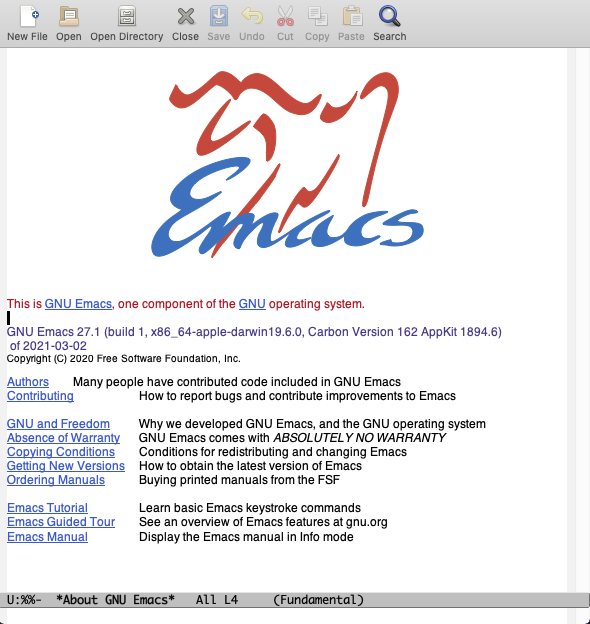
Ok so those bars had to go. It looks like a software from Windows 95.
Configuring Emacs
Removing unwanted GUI
So there are 2 locations where you can keep an Emacs config:
~/.emacs.d(This is is created by default)~/.config/emacs(If you remove~/.emacs.d, this is automatically picked up by Emacs)
I used the 2nd location for my config since my dotfiles were symlinked to ~/.config.
The base Emacs config is kept in a init.el file. Emacs uses a custom implementation of Lisp called Emacs lisp (.el file).
The first thing I did was to remove the bars.
Now before adding it to my config I tested the below config in a Scratch buffer, which is a temporary buffer you can use to test stuff before adding to the config.
;; Strip the clutter
(menu-bar-mode -1)
(tool-bar-mode -1)
(scroll-bar-mode -1)
(tooltip-mode -1)
Then to run the code, I used the following command, M-x eval-buffer (M is the Mod key which is usually Alt).
Did it work ?
No
I had installed the wrong Emacs. The one I installed (sudo pacman -S emacs) was for X11, so it was running using XWayland which is usually pretty bad when it comes to window-related functions like removing tool bars and stuff. I use niri which is a Wayland Compositor.
How did you find out ?
In emacs there is a command to find if we are running the version compiled using pgtk for wayland or not. Using M-x eval-expression RET (featurep 'pgtk) RET which returned nil (RET here denotes pressing the ENTER key).
Then what did you do ?
I installed the correct package for my system (sudo pacman -S emacs-wayland), then it worked without any issue.
Just to check to avoid future problems, I ran the command again. This time M-x eval-expression RET (featurep 'pgtk) RET returned t, which means I installed the correct one.
Now it looked like this.
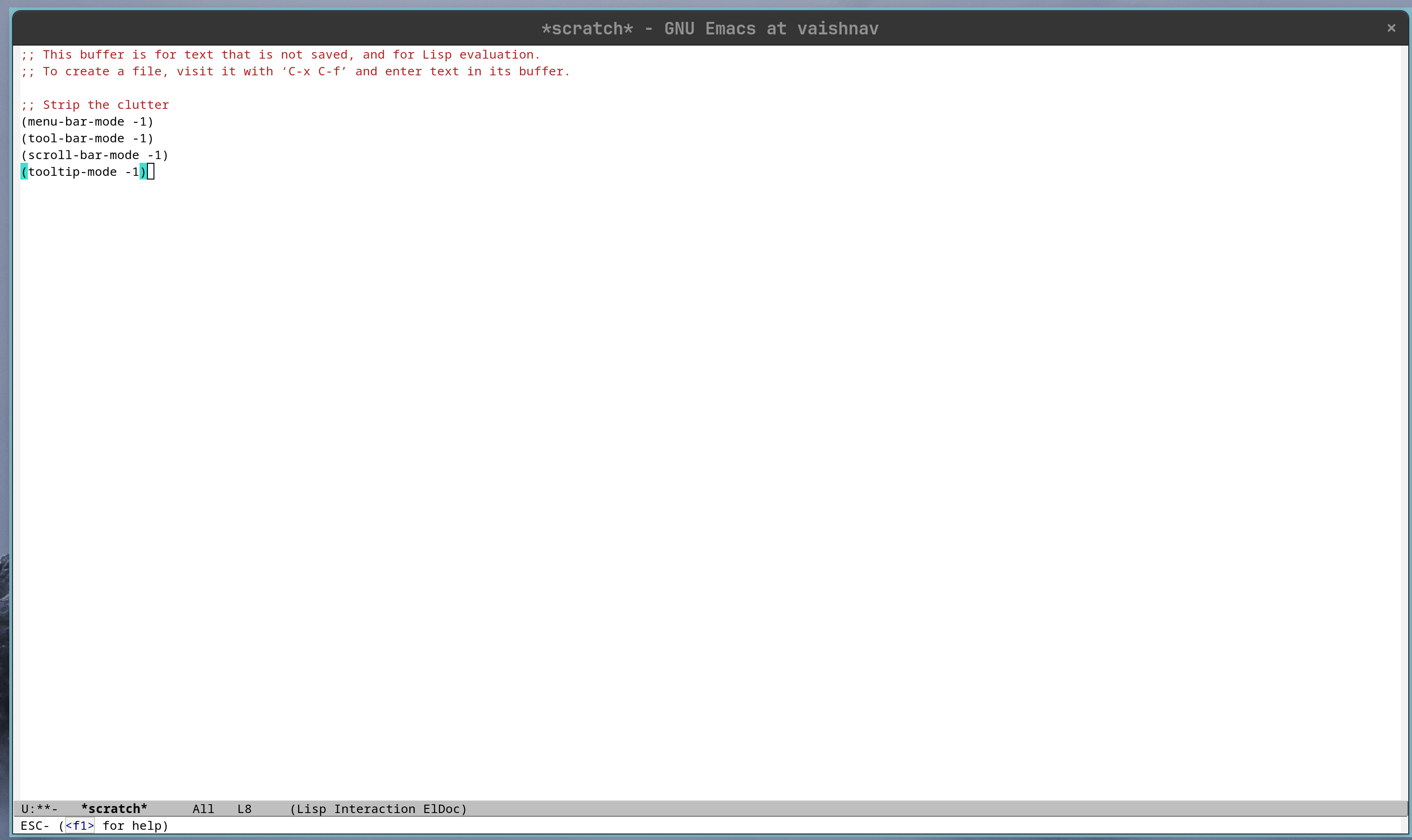
There is still a bar though
Yeah I know.
To remove the top bar I had to label it as an undecorated frame using the below command in the Scratch buffer
(set-frame-parameter nil 'undecorated t)And then M-x eval-buffer (This can be shortened to M-x ev-b)
Gave me this
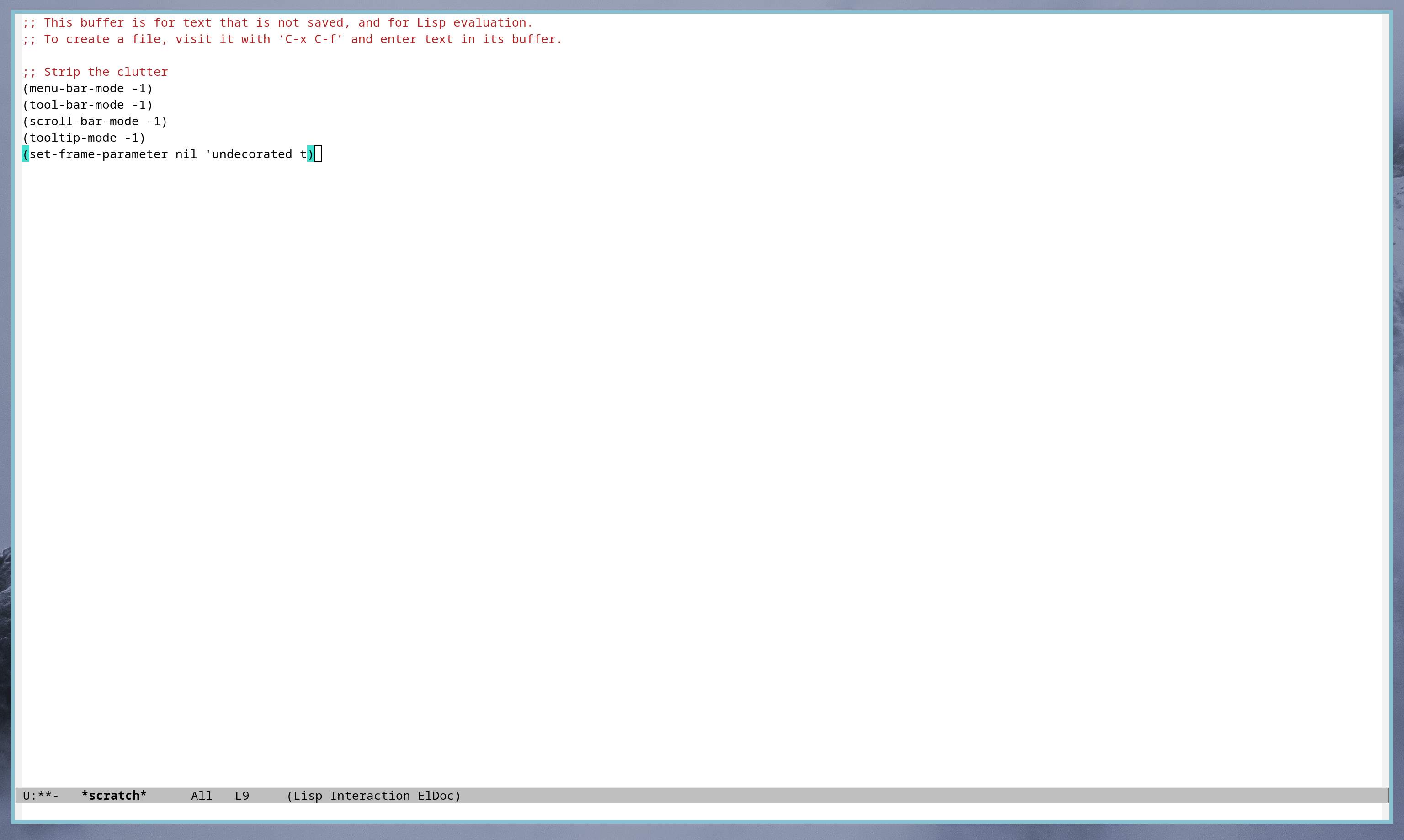
Now I wanted that to persist, so to do that I added this to my init.el (Full path: ~/.config/emacs/init.el).
(add-to-list 'default-frame-alist '(undecorated . t))Eradicating the flashbang
Now, I personally do not wanna get flashbanged every time I open emacs, which I why I wanted to go for a dark theme.
Most of the times themes need to be installed from 3rd party sources.
Thankfully emacs has some inbuilt themes. I went with the default modus-vivendi dark theme
(load-theme 'modus-vivendi t)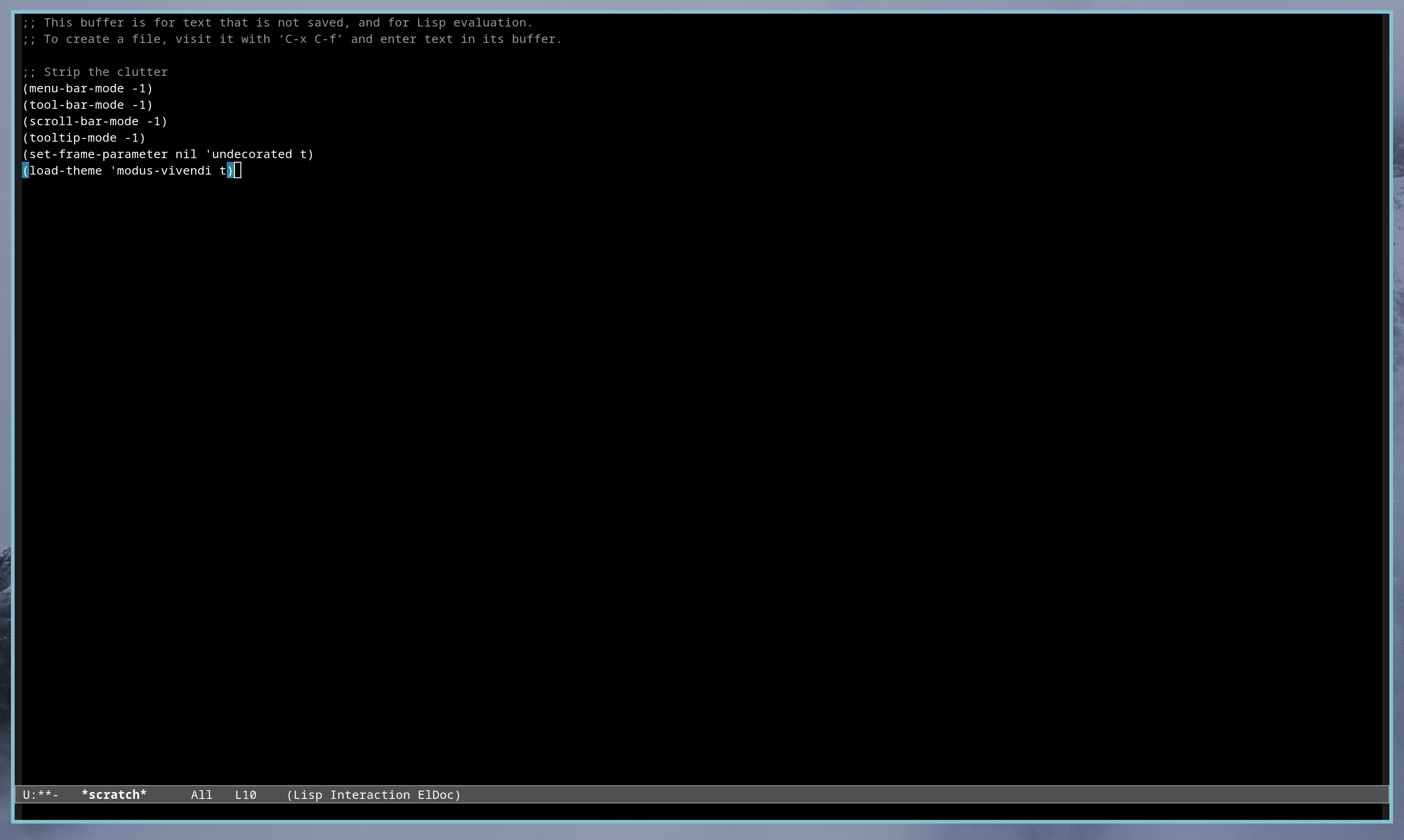
Much better.
But the font could use a bit of a size increase.
(set-face-attribute 'default nil
                    :font "JetBrainsMono Nerd Font"
                    :height 160)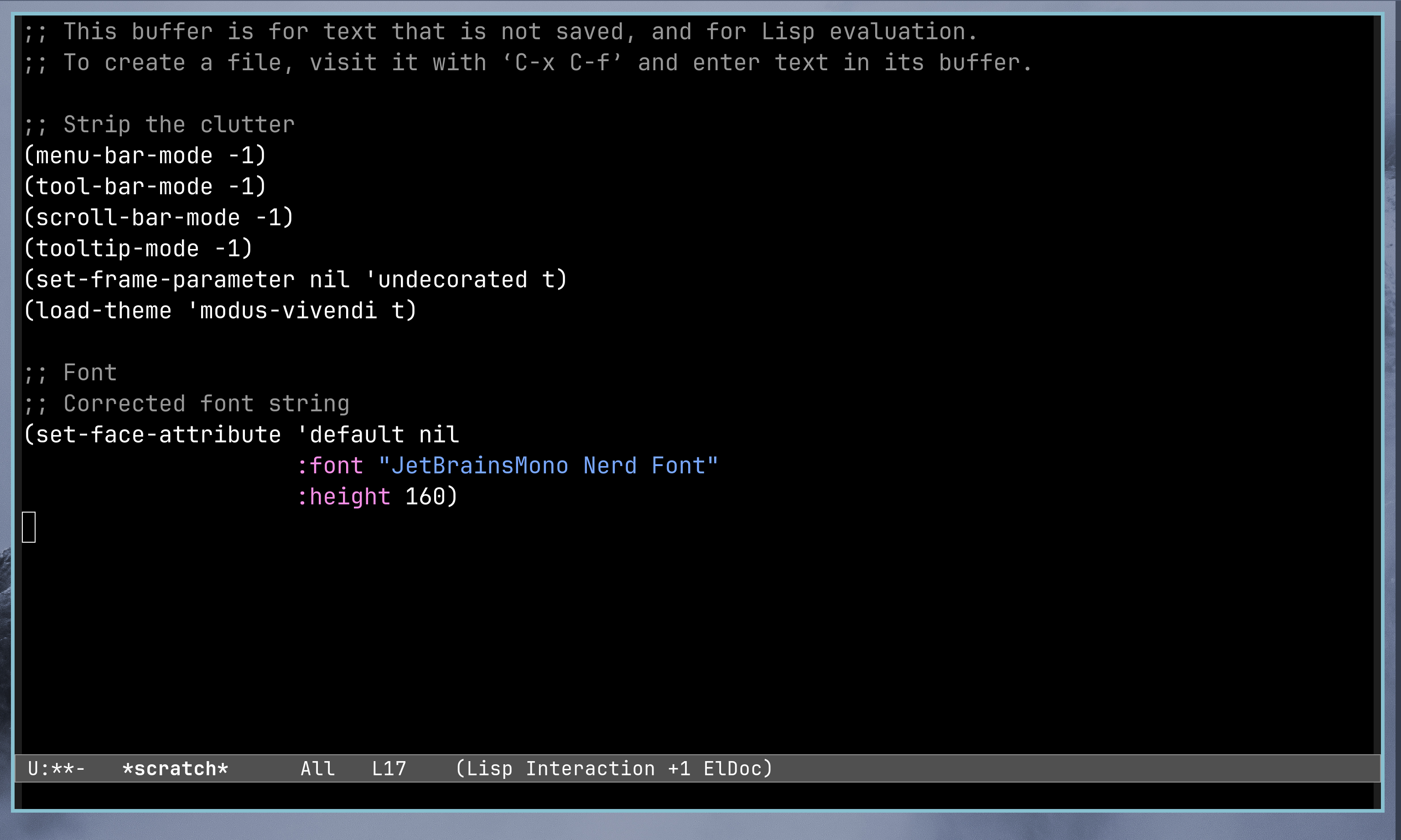
Terminal stuff
Now that the basic config is ready in emacs, the next thing needed is a terminal. Now I could of course use an external terminal emulator, but that would be too much ALT+TAB'ing.
Thankfully, emacs has in-built terminal emulators (Note the plural form). There are a total of 3 ways you can use terminal inside of emacs
termwhich is usually built-in to emacsansi-termalso built-into emacsvterm/ghostelwhich need to be installed separately
When I asked the community which one to use, many suggested I use anst-term over term since it is usually better in terms of rendering.
To open the terminal inside emacs, the command is M-x term or M-x ansi-term.
I tried all 3 and the one I stuck with was ghostel due to it's superior rendering capabilities.
Setting up Package Managers
Similar to neovim which recently added a built-in package manager (vim.pack), Emacs has 2 (elpa and melpa)
Elpa (Emacs Lisp Package Archive)
This is the official repository maintained by the Emacs project. But since it is official the number of plugins it has is limited. This is where melpa comes in.
Melpa (Maven for Emacs Lisp Package Archive)
This is a community-driven repository. It functions more like a mirror of public repositories (Like in GitHub, Codeberg or GitLab).
In Arch Linux Terms, elpa is basically the official Arch repository where only trusted users/Package Maintainers can publish and melpa is the AUR (Arch User Repository) where anyone can publish.
To add elpa and melpa to Emacs add the following lines to your config
(require 'package)
(setq package-archives
      '(("gnu"   . "https://elpa.gnu.org/packages/")
        ("melpa" . "https://melpa.org/packages/")))
(package-initialize)
The evaluate the buffer (M-x ev-b) and restart emacs for it to take effect.
Terminal Buffer Shenanigans
Now when I tried to use the terminal (ansi-term), my starship prompt was not being rendered properly, even when I used a nerd font.
So what did you do then ?
When I ran M-x describe-current-coding-system RET, the problem was exposed. Emacs was defaulting to iso-latin-1 instead of UTF-8 (WTH! Old software man). Because nerd font icons occupy multi-byte UTF-8 sequences, emacs was mangling the incoming bytes on sight.
How did you fix it>
I added the following code at the top of my init.el
(set-language-environment "UTF-8")
(set-default-coding-systems 'utf-8)
(prefer-coding-system 'utf-8)
(setq locale-coding-system 'utf-8)
And then
Installing packages
Now coming to how to install packages like vterm/ghostel etc.
Now that the package managers have been added, it becomes easy to install stuff.
First we will create a macro called use-package which will automatically install our packages for us
In the init.el
;; use-package
(require 'use-package)
(setq use-package-always-ensure t)
The restart emacs.
Now to install packages. In your init.el, add the following line to install ghostel
(use-package ghostel
  :ensure t)
Then run M-x ev-b (Eval buffer) and you should be able to see ghostel installing from melpa.
You can install a few more useful packages like company (Auto-suggestions) and which-key (Auto-completions of commands)
;;; which-key
(use-package which-key
  :init
  (which-key-mode))

;;; Autosuggestions
(use-package company
  :init
  (global-company-mode t)
  :config
  (setq company-idle-delay 0.1)
  (setq company-minimum-prefix-length 1)
  (setq company-selection-wrap-around t))
There is treemacs which is similar to neotree in nvim
;;; file tree
(use-package treemacs
  :bind
  ("C-c f" . treemacs)
  ("C-c p a" . treemacs-add-project-to-workspace)
  ("C-c p r" . treemacs-remove-project-from-workspace)
  :config
  (add-hook 'treemacs-mode-hook (lambda () (treemacs-follow-mode t))))
treemacs allows for configuring of keybinds in it's config itself.
Part 2 will focus on adding new themes and creating custom keybinds.
For my config you can view my dotfiles 2